Before you begin: Please contact your MMi representative to get access to your FTP and begin data flow. To view a list of the available dimensions and metrics please refer to the MMi connector listing.
Locate the MMi Data Source
1] Log in to TapClicks and, on the Data menu, click Data Sources.
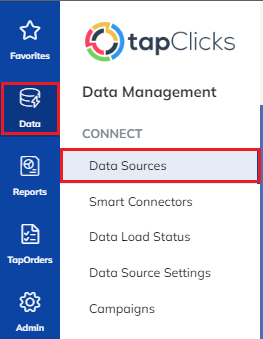
2] The menu of data sources appears.
3] To locate the MMi data source, either scroll through the list of data sources or enter the data source into the search box in the upper left (results appear automatically).
Install the MMi SmartConnector
4] On the MMi SmartConnector tile, click Select.
| Note: This will install a SmartConnector on your instance. You only need to authenticate to establish data flow. No additional configuration is needed. To learn more about the SmartConnector feature as a whole, check out this knowledgebase section. |
5] Install the SmartConnector by clicking Confirm when prompted.
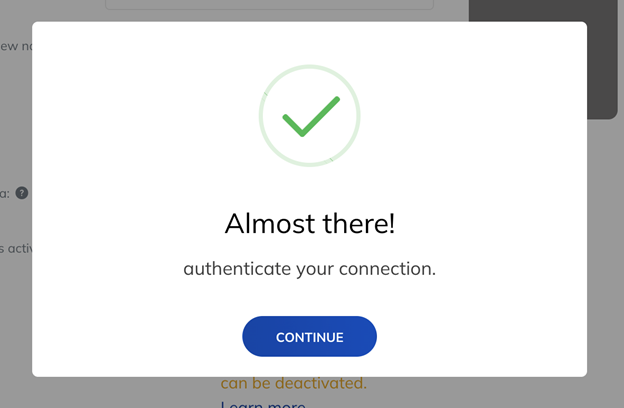
6] You will land on the SmartConnector Authentication Screen. Click Continue.
7] Scroll to the Manage Connections section and enter your Host, Username and Password.
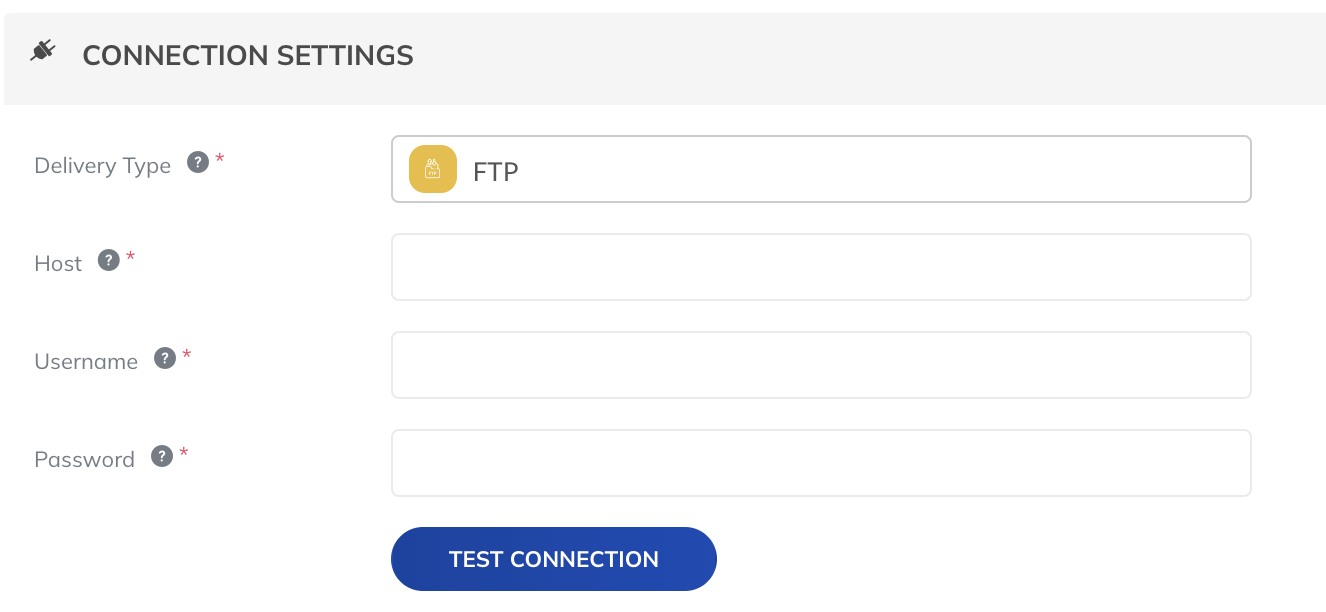
8] Click Test Connection.
9] Confirm the data path to the folder that contains your data in the Hosted File Settings section.
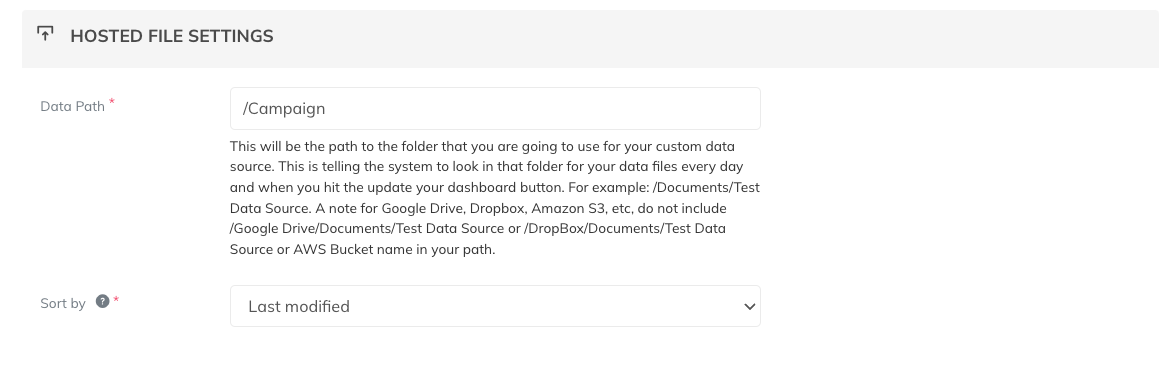
10] Click Save and then click the Go to Manage Data Sources button.
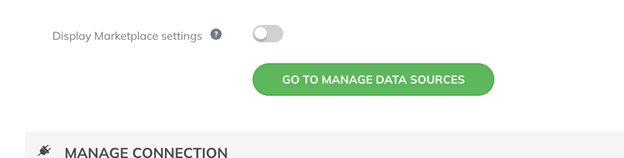
11] To assign your MMi data to a TapClicks client, on the left side find the data you want to assign.
12] To assign it to a client, on the right side, choose a client from the existing client dropdown (as shown) or create a new client to assign it to by choosing New Client from the dropdown.
13] Click Save at the bottom of the page.
14] After the data source is connected and data is assigned, you can either click Fetch My Data or wait until the regular data fetch occurs for data to start flowing into your dashboard.
Congratulations! You have connected your MMi data to your TapClicks client records.
What’s Next?
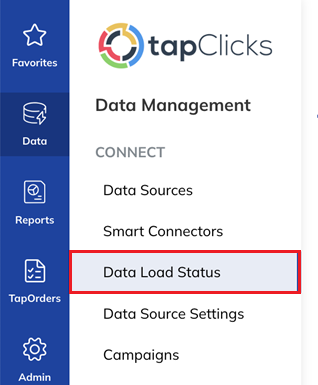
For new assignments between a data source and TapClicks client records, an initial data fetch will occur. Each data source has a different lookback period which determines the amount of historical data that is fetched (measured in months, weeks, or days). To view the lookback period for this Data Source and the status of your data fetches as a whole, click Data Load Status in the Data Management menu on the left side of your dashboard. For more information about Data Load Status, please see this article.
If you need more assistance, our Customer Care team is standing by to help at customercare@tapclicks.com.